Table of Contents
Why Do You Need SSD Cloning Software?
If your old hard drive is slow, clunky, and you need to move to a new, larger SSD, how do you move everything from your old drive to SSD without spending days reinstalling Windows or apps? That’s where SSD cloning software steps in.
In a nutshell, disk cloning allows you to copy your entire system – operating system, applications, partitions, and even hidden files – onto another drive, bit by bit. It’s like making an exact digital twin of your old drive. No reinstallations, no lost files, no headaches.
Best SSD Cloning Software Free Download
When it comes to cloning, not all tools are created equal. While there are plenty of options, one that stands out for both beginners and tech-savvy users is AOMEI Cloner. This professional disk clone software makes data migration from one disk to another, including from HDD to SSD, SSD to SSD, and SSD to HDD, a piece of cake. Some of its robust features include:
- User-Friendly Interface: Designed with an intuitive interface that simplifies the cloning process, available for all users.
- Multiple Cloning Options: It allows you to perform system-only cloning, full disk cloning, as well as partition cloning, covering diverse cloning scenarios.
- Flexible Cloning Modes: You can choose between sector-by-sector cloning (perfect for exact replicas) or intelligent cloning (only copies used space, saving time).
- Partition Alignment: Optimized for SSDs to ensure you get the best speed and lifespan out of your new SSD drive.
In short, with this software, you can copy only OS or clone entire hard drive to SSD error-free and quickly.
Steps of Cloning Hard Drive to New SSD
Cloning a disk sounds complicated, but with the right SSD cloning software, the process is straightforward. Let’s walk through the steps of disk cloning with AOMEI Cloner:
Step 1. Download and install this software on your computer. Plug in your new SSD using a SATA-to-USB cable (or directly connect it inside your PC if you’re comfortable doing so).
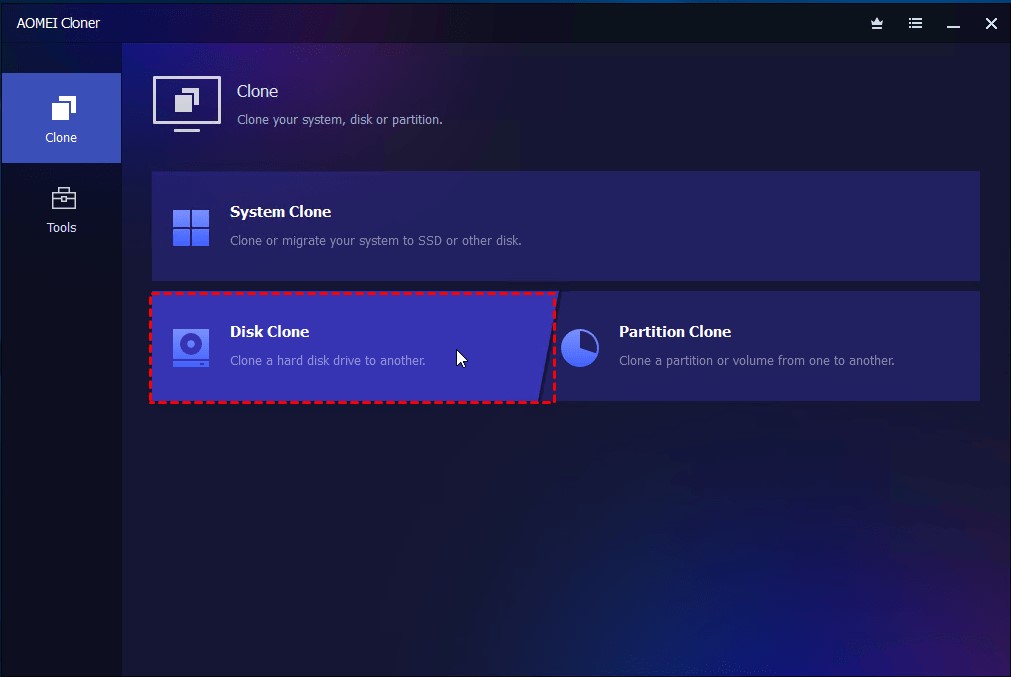
Step 2. Open AOMEI Cloner and select the option that suits your need – Disk Clone, System Clone, or Partition Clone under the Clone tab.
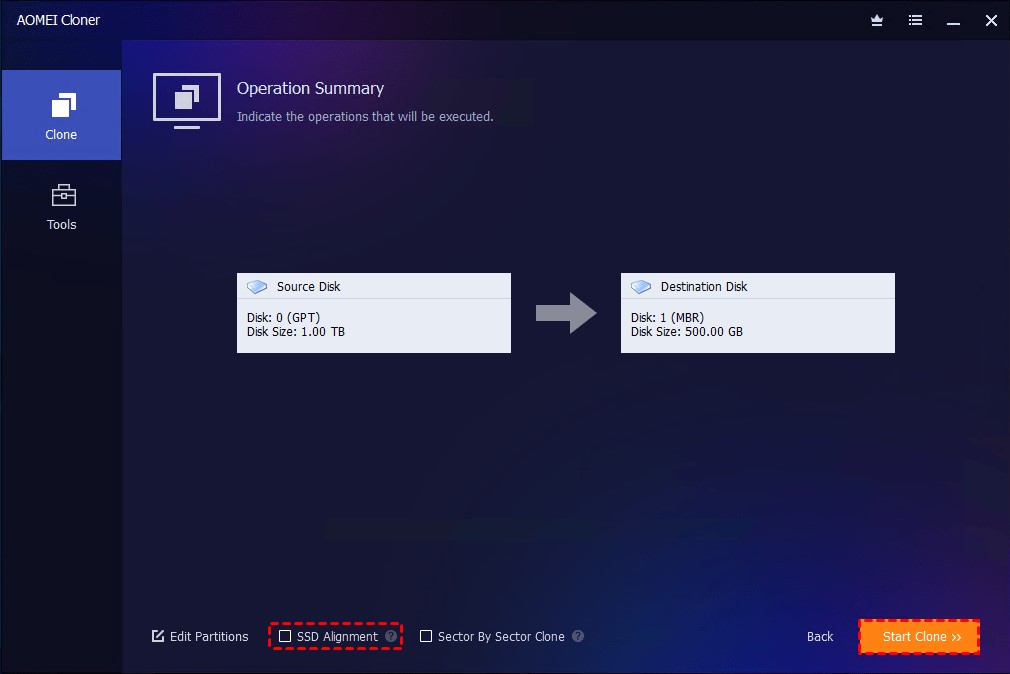
Step 3. Pick your old hard drive (or partition) as the source. Then, select your new SSD as the destination. It should be noted that everything on this drive will be erased, so back up any important files first.

Step 4. Enable SSD alignment for optimal performance. You can also resize partitions if you’re moving to a larger SSD.
Step 5. Click on Start Clone. Once the process is complete, shut down your computer, replace the old drive with the SSD, and boot it up.
Other Top 3 SSD Cloning Software for Windows (Our Picks)
While AOMEI Clone Tool is an excellent free option, there are several other products to consider. Each tool has its own unique advantages.
Macrium Reflect
Macrium Reflect is one of the most well-regarded disk imaging and cloning tools that has steadily gained popularity among everyday users who want a dependable solution for cloning and backup.
Pros:
incremental backups and scheduled backups
Strong compression and encryption features
Supports both home and business use
Cons:
Steeper learning curve for beginners
Free version is limited compared to the paid one
Clonezilla
A free, open-source tool that’s highly customizable for those who don’t mind a text-based interface.
Pros:
- Completely free and open-source
- Very flexible with lots of advanced features
- Works across different platforms, not just Windows
Cons:
- Not user-friendly; its command-line interface can intimidate newbies
- Lacks polished features like partition resizing during cloning
Acronis Cyber Protect Home Office
Unlike basic cloners that focus only on moving your system to a new drive, Acronis takes a holistic approach by combining cloning, backup, and cybersecurity into one package.
Pros:
- Combines cloning with backup and anti-malware tools
- Sleek interface
- Offers both cloud and local backups
Cons:
Subscription-based pricing can be costly
May slow down older system
Conclusion
Whether you’re upgrading to a faster SSD, creating a backup safety net, or just trying to simplify your digital life, cloning makes the process smooth and stress-free. If you’re looking for a reliable, user-friendly solution, AOMEI Cloner is a fantastic choice that balances simplicity with powerful features. If you want other options, tools like Macrium Reflect, Clonezilla, or Acronis Cyber Protect Home Office are also included for your bill.